

Saving, files and updates
Updating
Keep the configurator, the board’s firmware and the SimHub plugin up to date and in step with each other.
Four parts of a Pitrig setup age on their own: the configurator, the firmware on each board, the Pitrig plugin in SimHub, and SimHub itself. The configurator checks them all and offers the next step. Updates come only from the published Pitrig releases on GitHub; a release that is still a draft or a test release is never offered.
The order to update in
- 1The configurator first. Each version carries the plugin of its own release, fetches the firmware of that same release, and saves configurations in the format that firmware reads.
- 2Then the plugin in SimHub: Update plugin in the notice bar.
- 3Then each board: Download and update on the Firmware page.
A board is only ever offered the firmware of the configurator’s own release, never a newer one: a newer firmware would need a newer configurator to save to it. The plugin and the firmware of one release also share the list of game values the board reads, so keep them together.
Checking for updates
The configurator checks about 8 seconds after it starts, then once a day, and again when the computer wakes up after a day or more asleep. To check now, open Info in the left column and press Check now in the Updates section. The check only asks GitHub for the latest release.
Usage statistics
Separately, the configurator and the Pitrig plugin send anonymous usage statistics to pitrig.com: a random install number, the versions and the system, the board model and its firmware, the games SimHub runs, and finished saves or crashes. No names, files, dashboards or addresses are sent. Turn it off on Info under Anonymous usage statistics; that one switch also covers the plugin.
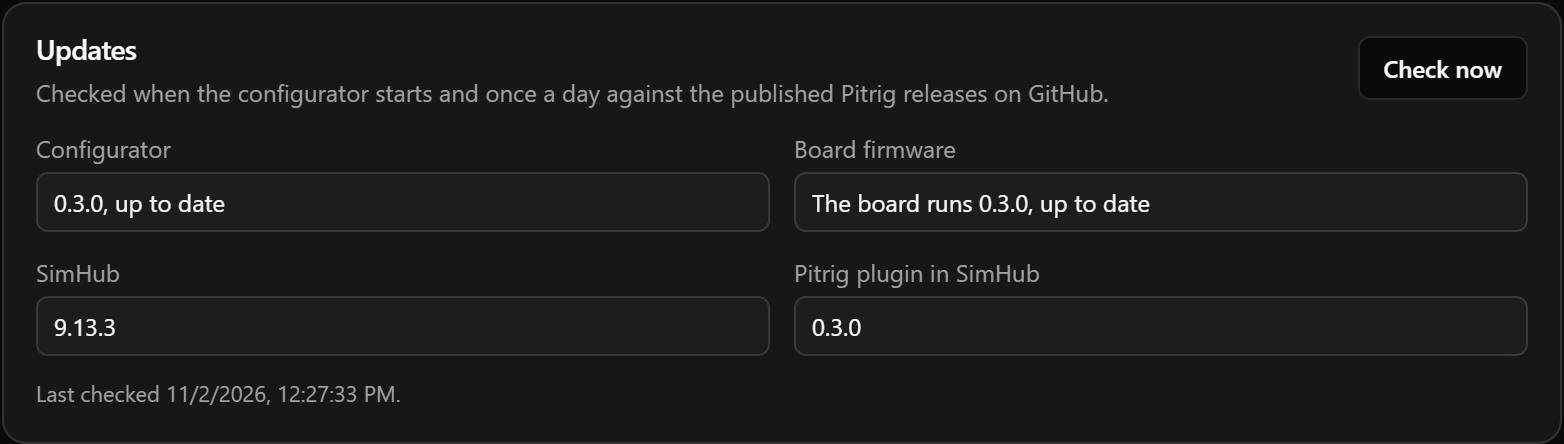
The notice bar
The cross hides an item until the configurator starts again. An older SimHub is not blocked.

A blue bar, Update the board’s firmware, appears when the board’s firmware reads another version of the configuration format than the configurator writes; each configurator writes one. The configurator can then read the board but not save to it, and the board does not follow your edits. When the board is the older one, the bar offers Open Firmware page: update the board, and the update puts its configuration back. When it is the newer one, there is no button and no firmware on offer: update the configurator. A board on older firmware of the same format gets only a green line, and saving works as usual.
A board in safe mode shows its notice in this bar too (Safe mode).
Updating the configurator
On Windows
The configurator downloads a new version in the background as soon as it finds one; Info shows how far it has got. When it is ready, the notice bar offers Restart and update. If you do not press it, the new version installs when you close the configurator.
On macOS
The configurator only tells you that a new version exists. Download opens the release page: download the installer for your computer and install it over the old one, as the first time (Download). On macOS, clear the quarantine flag again afterwards (macOS).
Updating the plugin in SimHub
- 1On Windows, press Update plugin, or Add plugin, in the notice bar. The plugin you get is the one inside the configurator, so the two always match.
- 2If SimHub is running, the configurator asks SimHub is running. Close it now so the Pitrig plugin can be replaced? SimHub starts again afterwards. Press OK. It closes SimHub — forcing it after 10 seconds — copies the plugin and starts SimHub again.
- 3If Windows asks for permission to make changes, allow it: SimHub’s folder can need administrator rights.
After the configurator has updated itself, look at the notice bar: if SimHub still has the older plugin, it offers Update plugin.
Updating the board’s firmware
A board has two firmware slots. It runs from one, and new firmware goes into the other over the same USB cable. The new firmware takes over when the board restarts; if it cannot start, the board goes back to the firmware it had. The configuration is kept, and fonts and images stay on the board.
Download and update
- 1When the board runs older firmware than this configurator brings, press Download and update on the Firmware page.
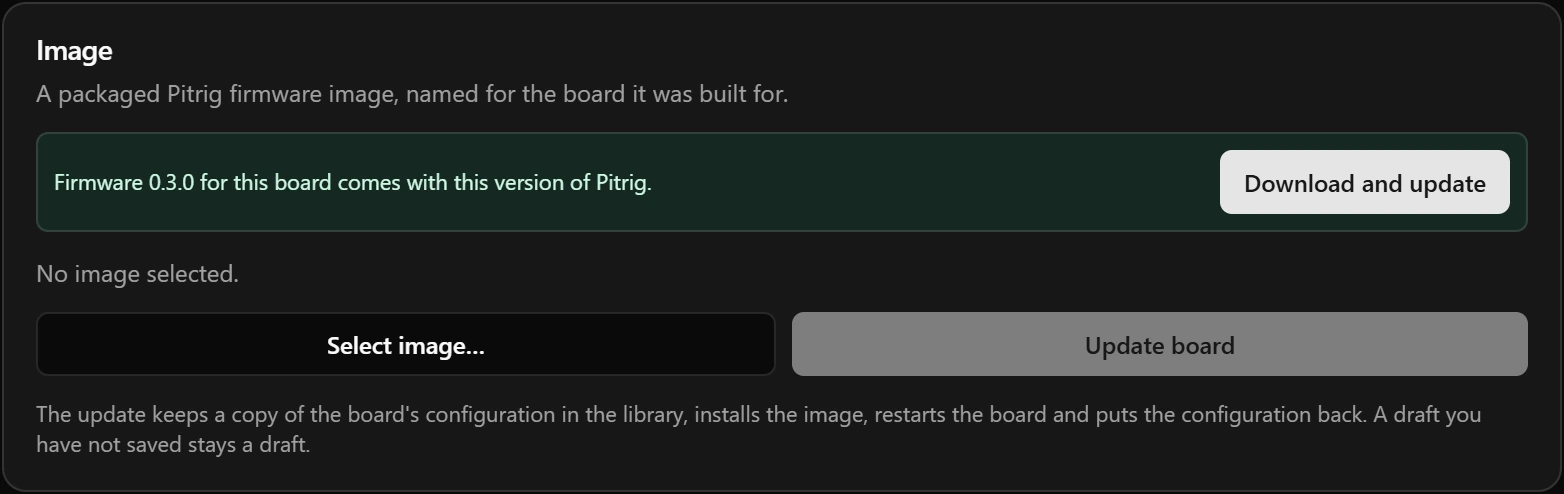
- 2The configurator downloads the firmware for your board from the release of its own version and checks its size and checksum. A copy downloaded before is used again. If the download fails, the reason appears in the notice bar.
From a file
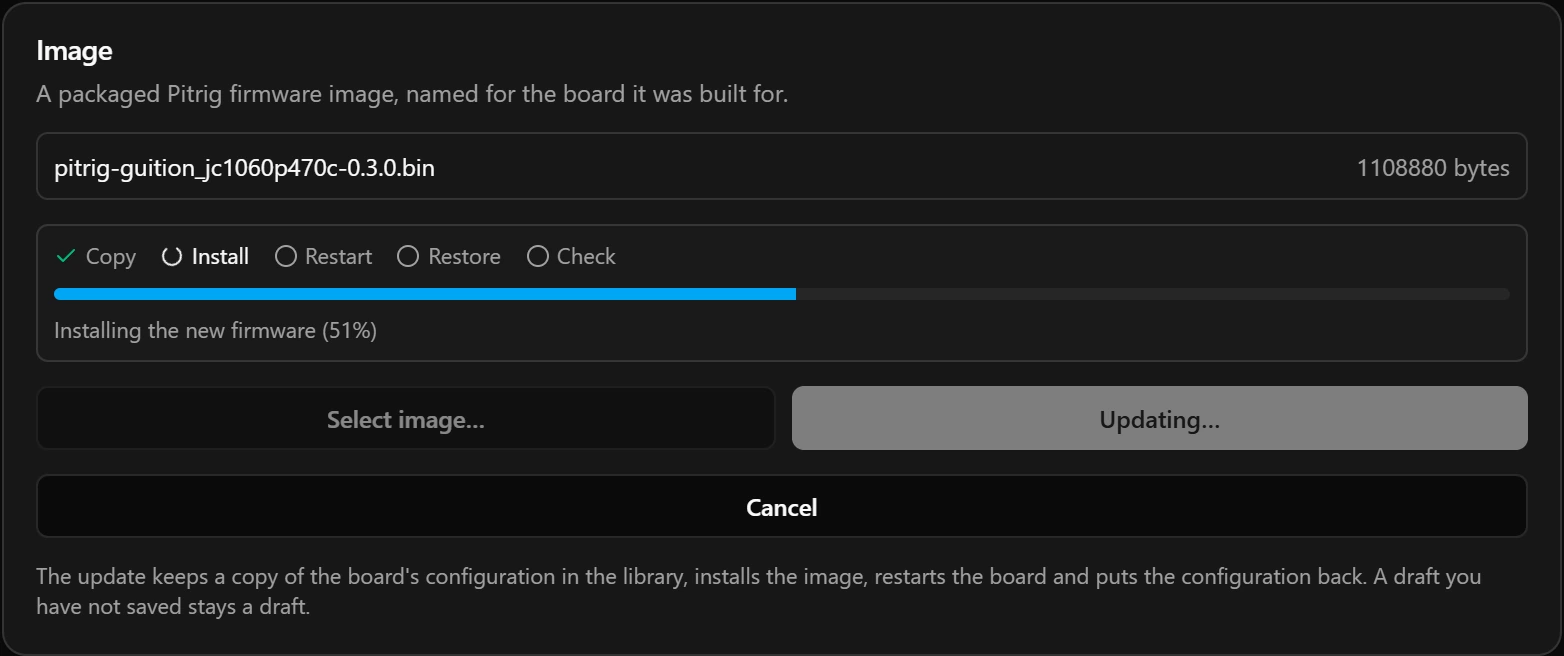
What the update does
| Step | What happens |
|---|---|
| Copy | Reads the board’s three documents and saves the ones it has stored to the library, under a name such as Before update · 2026-10-30 14:05:09 · firmware 0.3.0 (Configuration files). A board with nothing saved has nothing to copy. |
| Install | Cancel stops it and leaves the board as it was. |
| Restore | Saves back each copied document the board no longer holds as before — all of them when the new firmware reads a new version of the configuration format. Fonts are not sent again while the board still has them. |
| Check | Reads the board again and compares it with the copy. |
The board can restart a second time while its configuration goes back, for example when that includes the link settings.
How it ends
| Message | What to do |
|---|---|
| The board runs …, but its configuration could not be put back: … or … but what it holds differs from the copy. … | Open the copy under Configs → Saved configurations and press Save to board. |
| The board was not touched: its configuration could not be copied to the library. … | Often the library is full at 64 configurations. Delete one and try again. |
The update puts back what the board had saved, not your draft. A draft you have not saved stays a draft: save it afterwards if you want it on the board (Saving to the board).
Other states of the Firmware page
No second slot: the firmware on the board is too old to update itself. Install Pitrig once from the Flash page (Flashing a board). That erases the board, so save the configuration to a file first. Every later update can come this way.
Good to know
- The SimHub and plugin lines appear on Windows only, and only when SimHub is installed.
- Downloaded firmware is kept in the configurator’s folder (
%APPDATA%\Pitrig\firmware-downloadson Windows), so a second board of the same kind does not download it again. - The copy made before each update counts towards the 64 configurations the library holds.
Limits
| What | Limit |
|---|---|
| Firmware image file | 2.5 MiB |
| Oldest SimHub the plugin is checked with | 9.12.4 |