

Saving, files and updates
Configuration files
Keep configurations as files and in the library, move a draft to another board, and load, save or reset each document the board stores.
A configuration holds all three documents — dashboard, modules and protocol — for one board. What a save to the board does is explained in Saving to the board.
New, open and save as
With no board connected, pick one under Board to start a New configuration for it or to convert the draft (below). New starts empty: no screens, no LEDs, no buttons. Ctrl+S or Cmd+S does what Save as… does from any page, except while you type in a text field.
New, Open… and opening from the library or recent files replace the draft. They ask first when one is open, and there is no undo. The save dialog always suggests pitrig-configuration.json: type another name to keep several files. A file opens only when it is a valid configuration.
Moving the draft to another board
A configuration is made for one board, and the boards have different screens and pins. When the draft was made for another board than the one connected — or the one picked under Board — a box appears under the sizes. Keep proportions, centre and Stretch to fill the display work as Fit and Stretch do.
The Layout transfer report then lists what needs your attention:
- images that now draw at a new size and must be installed again at it (Images);
- settings that did not fit the range the board accepts and were limited;
- arc rings that were thinned to fit;
- LED outputs moved to a free pin of the new board — check them against how it is wired;
- LED outputs left without a pin because the board has none free: the draft cannot be saved until each has one;
- widgets that would sit entirely off the screen, which the board would refuse;
- for a board without a screen, that the dashboard was left behind, its button actions with it. LEDs, button wiring and link settings carry over.

If the converted draft would not be valid for another reason, the configurator leaves the draft as it was and says why. With no board connected, choosing another board in the board list under the canvas, or at the top of the Modules page, converts the draft the same way, with its Fit or Stretch switch.
The documents on the board
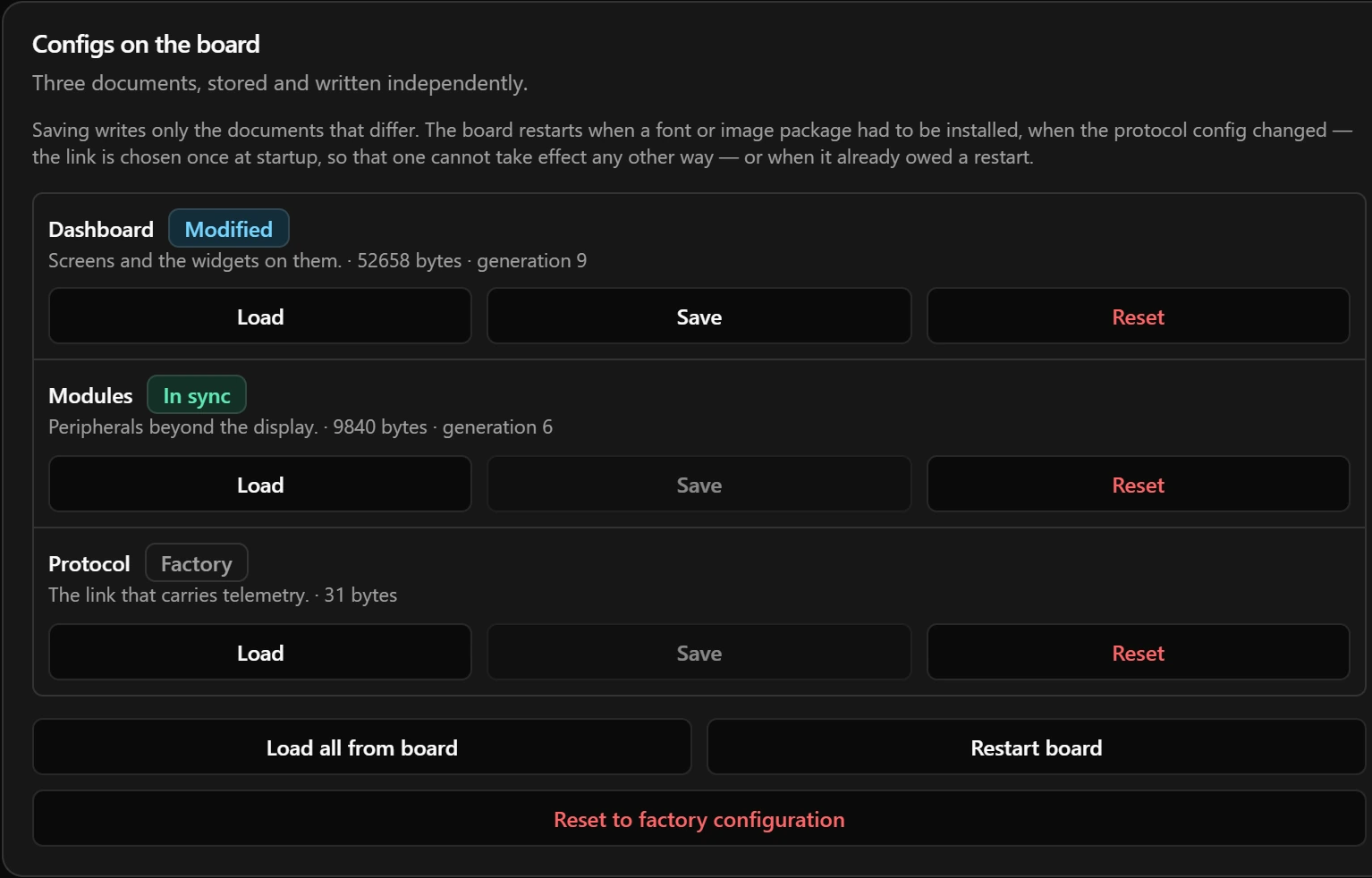
A document’s generation is a number the board raises every time it saves that document.
| Badge | Means |
|---|---|
| Factory | The board has nothing saved for this document and uses its built-in one: an empty dashboard, no LEDs or buttons, the board’s own link settings. |
| Refused | The board found the saved document damaged, written for another firmware, or not acceptable, and ignores it. The Info page says which. Save the document again. |
| Button | What it does |
|---|---|
| Reset | Erases this document from the board after you confirm. The board keeps running what it has until it restarts, then uses its built-in one. |
| Load all from board | Replaces the whole draft with what the board has saved. It does not ask first, and there is no undo. |
| Reset to factory configuration | Erases all three documents after you confirm, and the display brightness set with buttons. Restart the board to run its built-in configuration. Fonts and images stay: erase those on the Fonts and Images pages. |
What differs from the board
Widgets and screens are matched by name, so a moved widget reads as a move; a widget dragged into a group reads as removed from the screen and added to the group.
Saved configurations
The library keeps whole configurations in the configurator’s own folder (%APPDATA%\Pitrig\configurations on Windows). It also holds the copy the configurator keeps before each firmware update, named Before update · … (Updating).
A name that matches a saved one asks before replacing it. Capitals do not count, and spaces and signs count as dashes, so Race 1 and race-1 are the same name.
Recent files
The bin only takes a file off the list: the file stays where it is.
Advanced JSON
The last section shows each document as text in JSON, the format the board receives. As soon as your edit is valid JSON it becomes the draft, and a connected board shows it. A setting the board does not know, or a value out of range, makes the draft invalid, and the Document section shows the reason in red.
Good to know
- Keep a file or a library copy of anything you would miss: nothing is saved on its own.
- A draft that is not valid cannot be saved anywhere: not to a file, the library or the board.
- A file remembers the board it was made for. Opening it while another board is connected shows the convert box.
- A configuration names its fonts and images but does not contain them: a save asks for any font that computer lacks, and images live on the board.
Limits
| What | Limit |
|---|---|
| Saved configurations in the library | 64 |
| Library name | 64 characters |
| Recent files | 12 |
| Configuration file | 659 456 bytes |
| Changes listed per document | 200 |