

Dashboards
The dashboard editor
A map of the Dashboard workspace: its pages, the tools, the canvas, the layers and the inspector, the settings for the whole dashboard, and every mouse action and shortcut.
Putting widgets on the screen is in Placing and arranging widgets, more screens and switching pages in Screens and pages, ready-made dashboards in Templates, and what each kind of widget can show in Widget types.
The workspace at a glance
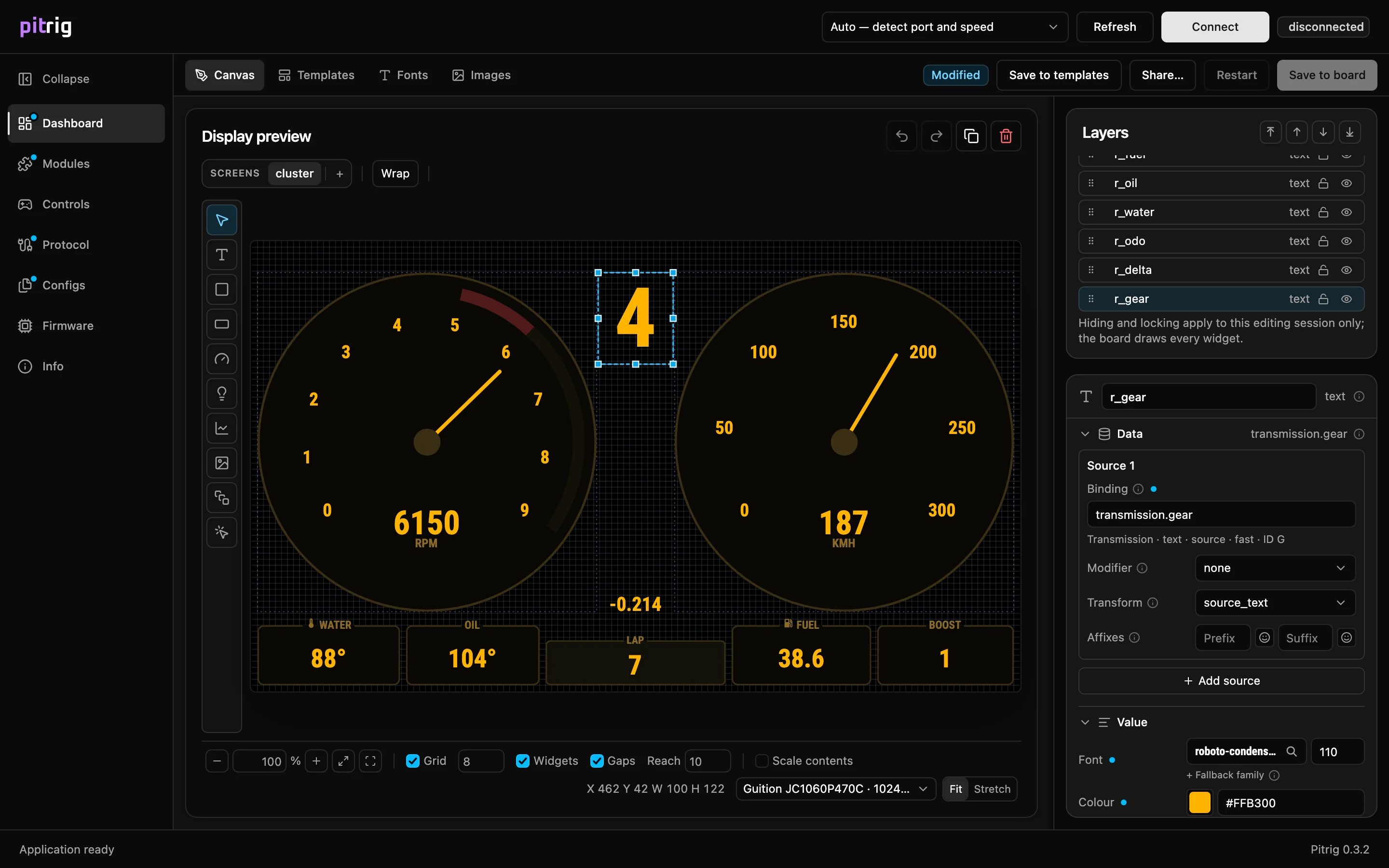
- 1The tools
- 2The canvas
- 3The status bar
- 4The inspector
Drag the line between the canvas and the panels on the right, or between Layers and the inspector, to give either more room.
Pages and buttons
The status text on the right of the bar is explained in What the Dashboard toolbar says, and Restart required in Seeing what differs.
Tools

- 1Select: picks, moves and resizes widgets.
- 2Text: a value as text, such as speed or a lap time.
- 3Shape: a panel, a frame or a container for other widgets.
- 4Bar: a bar that fills with a value.
- 5Arc: a ring or a needle.
- 6Lights: lamps that light one by one, such as shift lights.
- 7Graph: values traced over time.
- 8Image: an uploaded picture.
- 9Slot: an area that switches between pages.
- 10Tap zone: an invisible area that reacts to a tap.
The details of each are in Widget types.
The canvas
The canvas shows the selected screen in the board’s own pixels: 320 × 170 on the T-Display-S3, 480 × 480 on the ESP32-4848S040 and 1024 × 600 on the JC1060P470C. It shows values as the board does. A few marks appear only in the editor, never on the board:
- Faint dashed outlines: containers that hold widgets (violet) and slots (blue). While you drag a widget, every shape that could take it shows its outline, and the one it would drop into turns solid green.
- A green dashed outline with an arrow: a widget that reacts to a tap.
- An amber dashed outline: a widget its container cuts off.
The status bar

- 1At 100 % the whole display fills the space available.
- 2Widgets: line boxes up with the edges and centres of neighbouring widgets.
- 3Gaps: repeat a gap the row already has, so tiles stay evenly spaced.
- 4Reach: how close a box has to come before it snaps, in pixels on your screen.
- 5Scale contents: resizing a widget also scales what is inside it — a container’s widgets, font sizes, corner radii and line widths.
- 6Without a board connected, choosing another board moves the dashboard to that display, and Fit or Stretch decides how (Templates).
The snapping settings are also in the menu you get by right-clicking an empty spot of the canvas.
Layers and the inspector
With nothing selected, the inspector shows the Dashboard settings; after a click on an empty spot of the canvas, the screen’s Name and Background. An Advanced fold says set while folded if one of its fields is changed. A blue dot beside a name means the value differs from what the board uses by default: click the dot to go back to the default.
Dashboard settings
To see the Dashboard group, click one of the screen tabs above the canvas, or press Escape until nothing is selected.
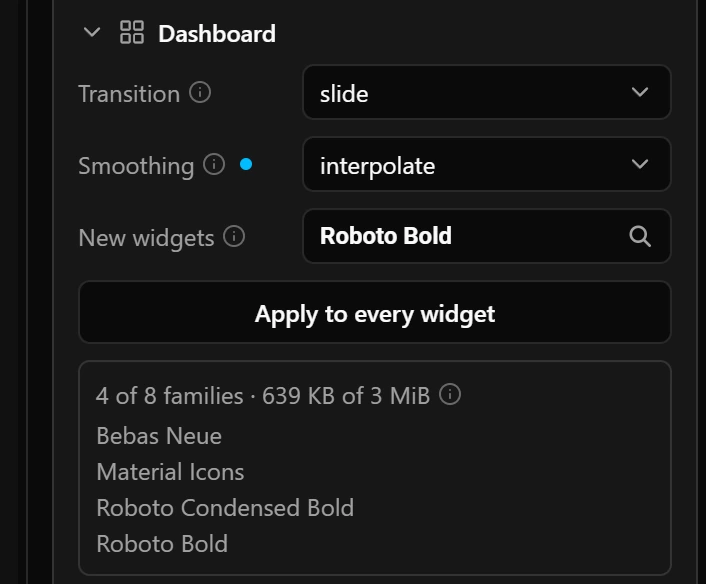
- 1The font budget and the families’ names. A name in amber is not in your font library.
| Field | What it does |
|---|---|
| Transition | slide takes 200 ms and draws both screens for every frame of the move, so on screens full of widgets it can stutter: then choose none. |
| Smoothing | Whether gauges glide between data updates: Smoother movement. |
| New widgets | The font family a new text widget gets, at the size that family is used at most on the dashboard (24 px if it is not used yet). Until you choose one, it is the family the dashboard uses most, Roboto on an empty dashboard. The board does not store this setting: it belongs to the editor. |
| Apply to every widget | Gives every text and caption on the dashboard the New widgets family. Sizes stay as they are. |
Mouse
| Action | What it does |
|---|---|
| Ctrl-click (Cmd-click on a Mac) | Selects the deepest widget. |
| Double-click a container or a slot | Works inside it. |
| Hold Ctrl (Cmd) during a drag | Snaps to the grid only. |
| Hold Ctrl+Shift (Cmd+Shift) during a drag | No snapping at all. |
| Ctrl (Cmd) and the mouse wheel | Zooms in or out around the pointer. |
| Drag with the middle button, or with Space held | Moves the view. |
Keyboard shortcuts
The editing shortcuts work on the Canvas page wherever the focus is, except while you type in a field or a dialog is open. The last two rows work on every page.
| CtrlZorCmdZ | Undo. |
| CtrlShiftZorCtrlYorCmdShiftZ | Redo. |
| CtrlCorCmdC | Copy. |
| CtrlVorCmdV | Paste. |
| CtrlDorCmdD | Duplicate. |
| CtrlAorCmdA | Select every widget on the screen except hidden ones. |
| CtrlGorCmdG | Wrap the selection in a container. |
| CtrlShiftGorCmdShiftG | Unwrap the selected container, or the one around the selected widget. |
| Ctrl]orCmd] | Bring to front. |
| Ctrl[orCmd[ | Send to back. |
| CtrlAlt]orCmdOption] | Bring forward one step. |
| CtrlAlt[orCmdOption[ | Send backward one step. |
| DeleteorBackspace | Delete the selection. |
| Arrow keys | Move by 1 pixel. |
| ShiftArrow keys | Move by 10 pixels. |
| CtrlAltArrow keysorCmdOptionArrow keys | Resize by 1 pixel, 10 with Shift. |
| CtrlShiftCorCmdShiftC | Turn Scale contents on or off. |
| Ctrl=orCmd= | Zoom in. |
| Ctrl-orCmd- | Zoom out. |
| Ctrl0orCmd0 | Show the whole display. |
| Escape | Back to Select; stop a drag or the placing of a saved widget; otherwise select the container around the selection, then leave it, then clear the selection. |
| CtrlSorCmdS | Save the draft to a file (Configuration files). |
| Ctrl1…6orCmd1…6 | Switch workspace, in the order of the left column. |
Good to know
- Locking, hiding, the zoom and the selection belong to the editor, not to the dashboard. The board draws every widget, and none of it is kept when you close the configurator.
Limits
| What | Limit |
|---|---|
| Zoom | 25 to 800 % |
| Grid step | 1 to 64 px |
| Snap reach | 1 to 32 px |