

Buttons
Buttons on your wheel
Use the buttons on your wheel, a button box, a gamepad or the keyboard to switch screens and pages, dim the display and turn the LEDs down or off.
Your board can react to the buttons on your PC: on the wheel rim, a button box, a gamepad or the keyboard. They are not wired to the board. SimHub reads them, and the Pitrig plugin sends their state to the board together with the game data, so SimHub has to run with the plugin both while you set the buttons up and while you drive. Everything is set up on the Buttons tab of Modules.
The Buttons tab
On a board without a screen, the ESP32-S3-DevKitC-1, only the first three sections appear and the buttons can only change the LEDs.
Name your buttons
The name is what the action lists show, and after you save, the Buttons tab of the Pitrig page in SimHub shows it too. To let another control press the same button — a key on the keyboard as well as the button on the rim — press Assign again and press that control.
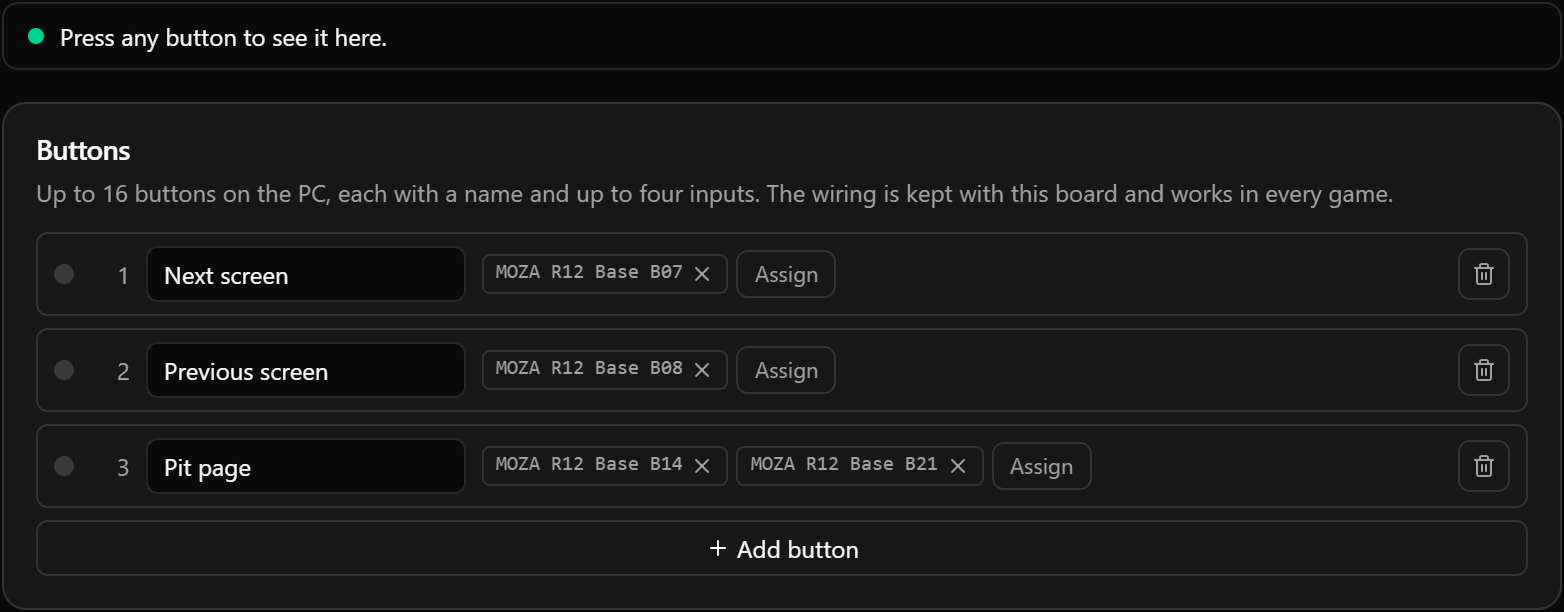
- 1The number, 1 to 16, is how actions and SimHub refer to the button.
- 2Assign: greyed out without SimHub, or when the button already has 4 inputs.
- 3Bin: clears the button’s name and inputs.
While Assign flashes, the page takes the next button you press anywhere. Press Esc to stop waiting.
The multi-position switch
A rotary switch on a rim usually reports each position as a separate button. Give every position its input, and turning the switch shows the matching page of a slot: an area of a screen that shows one of several pages, set up in the dashboard editor.
- 1Press Add position, then turn the switch into its first position. If it is already there, turn it away and back. Do the same for each position.
- 2Under Turns the pages of, pick the slot. Position 1 shows its first page, position 2 its second, and so on.

- 1The switch has more positions than the slot has pages. The extra positions do nothing.
Only the last position has a bin. To change an input in the middle, remove its chip and press Assign on that position. A slot holds at most 8 pages, so positions 9 to 12 turn no pages; a screen rule or a condition that watches input.switch can still use them.
What the buttons do
Actions belong to the dashboard, so another dashboard brings its own. One button can carry several actions; they run in the order listed.

| Action | What it does |
|---|---|
| Screen while held, Page while held | When you let go, the screen or the slot goes back to what it showed. |
| Dismiss a raised page | Sends away a page that a game event brought up in the slot you pick. How long it stays away is set on that page. |
| Display brighter, Display dimmer | 10 % a press, between 10 % and 100 %. The board remembers the level when it restarts. |
| LEDs brighter, LEDs dimmer | A tenth a press for every LED strip and matrix, between a tenth of the brightness set for it and that brightness. Lasts until the board restarts. |
| LEDs on or off | Switches every LED off until the next press, or until the board restarts. |
A board without a screen offers only the three LED actions. Repeat while held repeats 0.4 s after you press, then every 0.15 s.
Screen rules
A rule brings a screen forward while a game value holds, such as a pit screen while you are in the pit lane. When the value stops holding, the dashboard goes back to the screen it was on, unless a button moved it in the meantime. When several rules hold at once, the first one wins.
A yes-or-no value compares with 1 for yes and 0 for no. A rule written by hand in a file can hold more comparisons: the page edits the first and keeps the others as they are.
Home
Return home after counts time without a screen change or a button press; 0 never returns. It waits while a screen rule holds and while any button is held. A slot can also go back to its own first page after a while: that is First page after on the slot.
Mapping buttons in SimHub instead
The plugin also gives SimHub one action per button and per switch position: PitrigPlugin.Button1 to PitrigPlugin.Button16 press buttons 1 to 16, and PitrigPlugin.SwitchPosition1 to PitrigPlugin.SwitchPosition12 turn the switch to that position. Map them under Controls and events in SimHub if you would rather keep the mapping there. A button pressed this way does what What the buttons do says for its number.
- Inputs you assign in the configurator are saved on the board, so they go with it to another PC. A mapping made in SimHub stays in SimHub on this PC.
- SimHub can also fire these actions from its own events. A press that comes without a button held down counts as a short tap.
Where it is kept
| What | Document | When the dashboard changes |
|---|---|---|
| Button names, their inputs, the switch positions | modules | They stay. |
| Actions, the slot the switch turns, screen rules, Home | dashboard | They go with the old dashboard; the new one brings its own. |
Both are saved with Save to board (Saving to the board). While the configurator is connected, the board follows your changes at once and the plugin uses the wiring in front of you, so a new button works before you save. When the configurator lets go of the board, SimHub reads the wiring the board has saved, so save before you close the configurator.
Good to know
- One input belongs to one button or one switch position. Assigning it again moves it.
- Clearing a button in the middle of the list leaves an empty row, so the buttons after it keep their numbers. Add button fills the first empty row.
- The chip at the top of the Modules page follows the modules document, which holds the wiring. A change to the actions, rules or Home shows as a dot on Dashboard in the left column instead.
- The templates that come with the configurator have no actions, screen rules or Home, so set them again after Use.
- Renaming or deleting a screen, renaming a slot, or deleting a page a button shows does not update the actions, rules, Home or switch that name it. Pick the screen, slot or page again in each: until you do, the draft cannot be saved, and the message names the culprit, such as Action 1 shows screen "screen2", which the dashboard does not have.
- Accented and non-Latin letters take two or more of the 23 characters of a name.
- A widget or an LED layer can follow a button too: give it a condition on
input.buttonswithbit_setand the button’s number (Conditions).input.switchholds the switch position, 0 until one is known.
Limits
| What | Limit |
|---|---|
| Buttons | 16 |
| Inputs per button | 4 |
| Button name | 23 characters |
| Switch positions | 12 |
| Pages a switch can turn | 8, the most a slot holds |
| Actions on one dashboard | 32 |
| Screen rules | 4 |
| Return home after | 0 to 600 seconds |