

The configurator
Connecting a board
Install the configurator on Windows or macOS, connect it to a board over USB, and read what it tells you when something is in the way.
Install the configurator
Download the package for your computer from the Download page. None of them is signed yet, so Windows warns you once and macOS needs one command before it opens the app.
Windows
- 1Run
Pitrig-Setup-<version>.exe. If Windows says it protected your PC from an unknown app, choose More info, then Run anyway. - 2When SimHub is on the computer, the installer adds the Pitrig plugin to it. If SimHub is running, it asks whether to close it, and starts it again afterwards. Windows may ask for permission to copy the plugin into SimHub’s folder.
- 3Start SimHub. It says it found new plugins: tick Pitrig telemetry and confirm.
When the plugin could not be added — you said no to closing SimHub, or the copy failed — the configurator offers Add plugin in its notice bar, and The SimHub plugin shows how to add it by hand. From then on the Windows configurator keeps itself up to date.
macOS
- 1Download the disk image for your Mac (Apple silicon). Drag Pitrig into Applications.
- 2macOS refuses to open an app that is not signed. Open Terminal and run the command below once.
xattr -dr com.apple.quarantine /Applications/Pitrig.app
On macOS the configurator does not update itself: install each new version the same way, command included.
sudo usermod -aG dialout $USER
Connect
- 1Leave the port list on Auto — detect port and speed and press Connect.

- 2If nothing was open, you start from what the board has saved. If a draft was open and differs from the board, the configurator first asks which one to keep (below).
What Auto does
Auto tries every USB serial port: Pitrig’s own USB first, then USB-to-serial chips, then the rest. It leaves out Bluetooth ports and the ESP32’s USB programming port, which never carries the Pitrig link. On each port it asks for a Pitrig board at 921600 baud, then at 460800, 230400, 115200, 57600, 38400, 19200 and 9600, waiting up to a second for each answer, and it stops at the first board that answers. A board the SimHub plugin is feeding counts as found without being asked.
With other serial devices plugged in, the search takes longer: a port that never answers costs about a second for every speed. Choosing the port by hand skips the search.
When Auto reports a problem
| Message | What to do |
|---|---|
| No USB serial ports were found. | Try another cable and another USB socket on the computer; on a board with two USB sockets, try the other one. For the Guition ESP32-4848S040, see below. |
| The serial port is busy. … | The web flasher in a browser tab counts too, and the other Pitrig app is the Pitrig Debugger. Remove a Custom Serial device from SimHub. The Pitrig plugin hands the board over by itself. |
| No compatible Pitrig board answered. | The board may not run Pitrig yet (Flashing a board), may still be starting — wait a few seconds — or may be plugged in by its other USB socket. |
| The serial device was disconnected. | The cable came out, or the board restarted on its own while connected. |
Choose the port by hand

- 1The speed list: 921600 for every board except the Guition ESP32-4848S040, unless you changed the speed in Transport.
- 2On Windows, a port named Espressif is the chip’s programming port and never answers.
- 3Refresh is for a board plugged in after the configurator started. If the chosen port has gone, the list goes back to Auto.
If the board does not answer, the message is The device did not answer @PR:INFO.: the port is not a Pitrig board, or the speed is wrong. With a port chosen by hand, the status line keeps saying Application ready, so read the messages on the Info page, under Connection.
When the board and the draft differ
If a draft is open when you connect — you edited before plugging the board in, or reconnected after editing — and it differs from what the board has saved, the configurator stops before writing anything and asks which side to follow. It asks the same when what the board has saved changes while you edit: while nothing else is going on, it asks the connected board every five seconds what it holds.
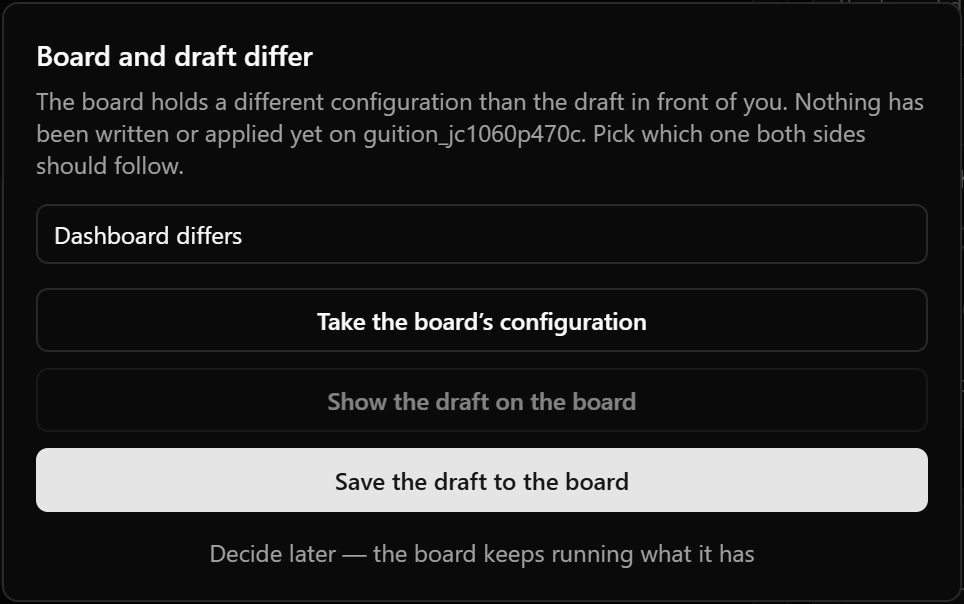
- 1Take the board’s configuration: unsaved changes in the draft are lost.
- 2Show the draft on the board: the board follows the draft without saving it.
- 3Decide later — the board keeps running what it has: closes the question. The board ignores your edits until you answer: the Dashboard tab bar says The board runs its own configuration., and Resolve beside it asks again.
A later Save to board settles the question as well.
Using it while SimHub runs
You do not need to close SimHub. When you press Connect, the configurator asks the Pitrig plugin to let go of the board, waits until it does, and opens the port. While connected, it passes the game data from the plugin on to the board, so the dashboard and the LEDs keep moving, and the canvas shows the same live values. The data pauses while a save or an upload runs.
When you press Disconnect or close the configurator, it hands the board back to the plugin together with the port and the speed, and the plugin feeds it again.
The Guition ESP32-4848S040
This board reaches the computer through a CH340 USB-to-serial chip rather than its own USB, and its link runs at 460800 baud. Auto finds it at that speed; by hand, choose 460800.
- Leave its speed at 460800 under Transport.
- The SimHub plugin opens this board only once the configurator has connected to it.
- If Windows shows no port for it, install the CH340 driver from the chip maker.
Disconnect
The board keeps showing what it showed: if that was a draft you had not saved, it goes back to its saved configuration at its next restart. Let a save, an install or an update finish before you disconnect.
Safe mode
When a board crashes while starting three times in a row, it starts in safe mode: it brings up only the USB link and waits — no dashboard, no LEDs, no buttons. The configurator connects as usual and shows the notice Board is in safe mode. Until it leaves safe mode, the board does not follow your edits and takes no fonts or images.
Fix what made it crash — usually something in the configuration — then leave safe mode in one of these ways:
- Save to board. Saving clears the count of failed starts, and the configurator restarts the board into an ordinary start. When the draft matches the board, the button is greyed out: change something first.
- Reset to factory configuration on the Configs page erases what the board has saved and clears the count. Press Restart afterwards, and the board starts with its built-in configuration.
- Update board on the Firmware page. Installing firmware clears the count too (Updating).
- Unplug the board and plug it back in. Switching it on clears the count, and the board tries an ordinary start again — falling back to safe mode if the same thing crashes it three more times.
Restart alone does not help: the count survives a restart, and the board comes back in safe mode.
The Info page
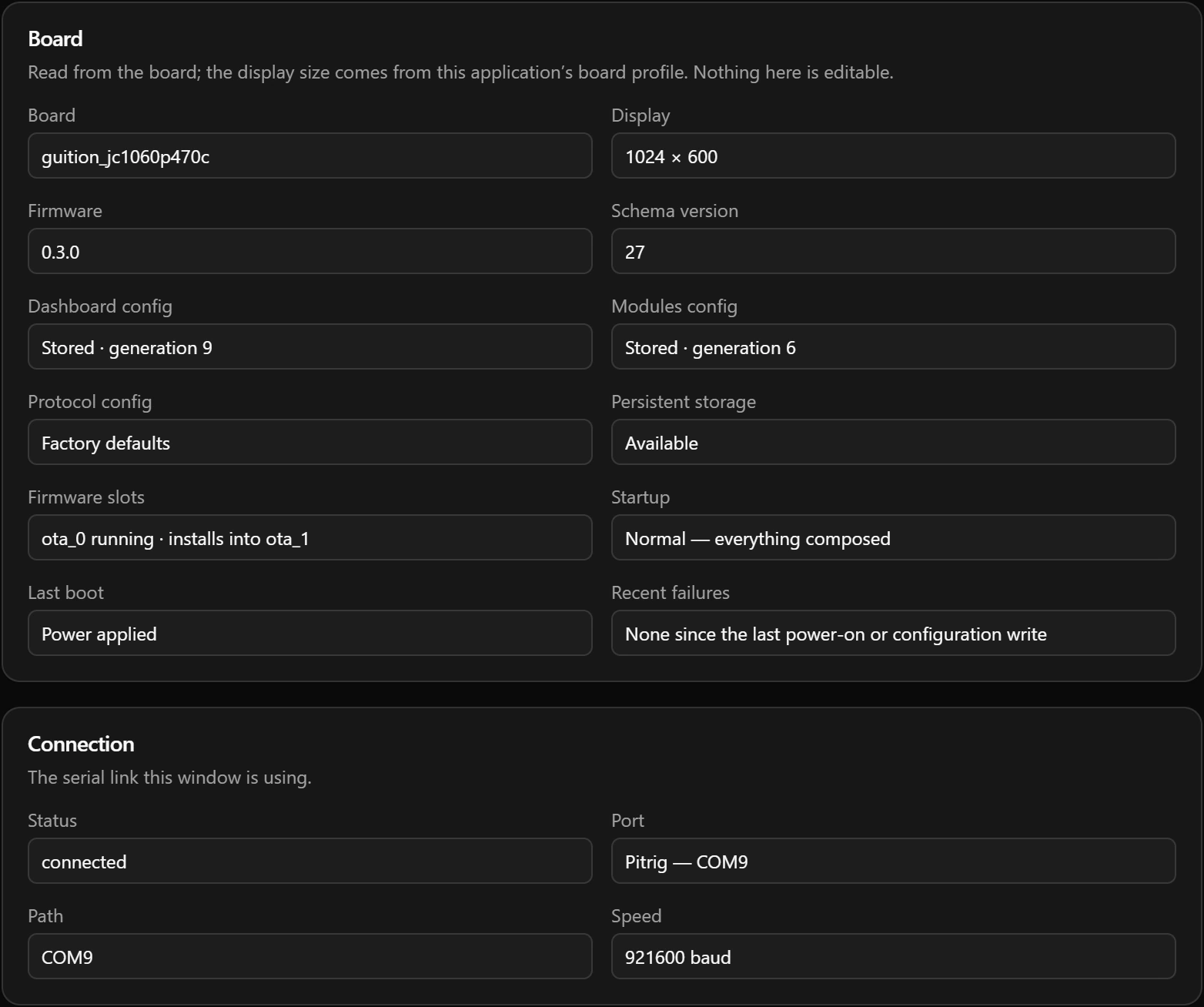
Schema version is the configuration format the firmware reads: saving works only when it matches the configurator’s. Single application partition under Firmware slots means firmware too old to update over USB.
Good to know
- After a saved change of the link speed, the configurator cannot reconnect by itself: see What a change does.
- A board’s port takes one program at a time. The SimHub plugin is the only one that steps aside by itself.