

LEDs and matrices
Previewing LEDs
See what a strip or a matrix shows before you drive: the lamp map follows SimHub during a game or a replay, and a simulator lights the layers at your desk, on screen and on the board.
The Preview above the tabs of a strip or a matrix lights every lamp the way the board would. While a game or a replay runs in SimHub it follows the game; otherwise a simulator gives the layers their values, so you can try shift lights and flags at your desk.
The lamp map
- Colours are shown at full strength. The map ignores Brightness, Gamma and Current cap, so a dim strip still reads on screen.
- Hover a lamp: the line under the map names the layers that cover it and the one on top at that moment, or says that no layer covers it.
- Click a lamp to pick the layer on top of it. On the Layers tab, with a layer picked, a click chooses lamps instead.
SimHub or the simulator
At first Driven by chooses by itself: SimHub while a game or a replay sends values, Simulator otherwise.
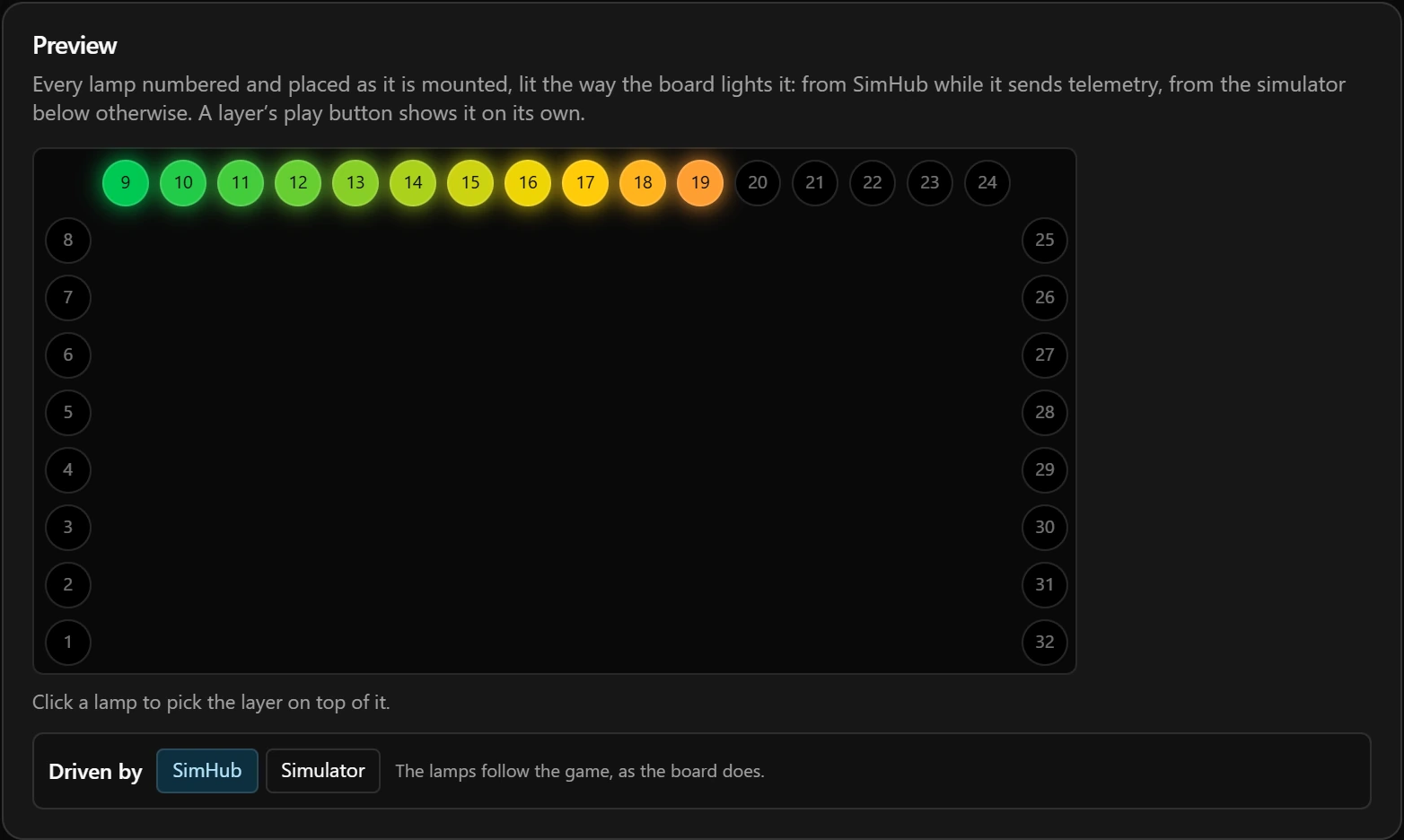
- SimHub sends values only while a game or a replay runs. Choose SimHub without one and every layer that reads a game value stays dark.
- While the preview follows SimHub, layers on
telemetry_idlestay dark in it. The simulator’s Telemetry lost switch shows them.
The simulator
Each control is named after the layers that read its value; hover a control to see which value it is.
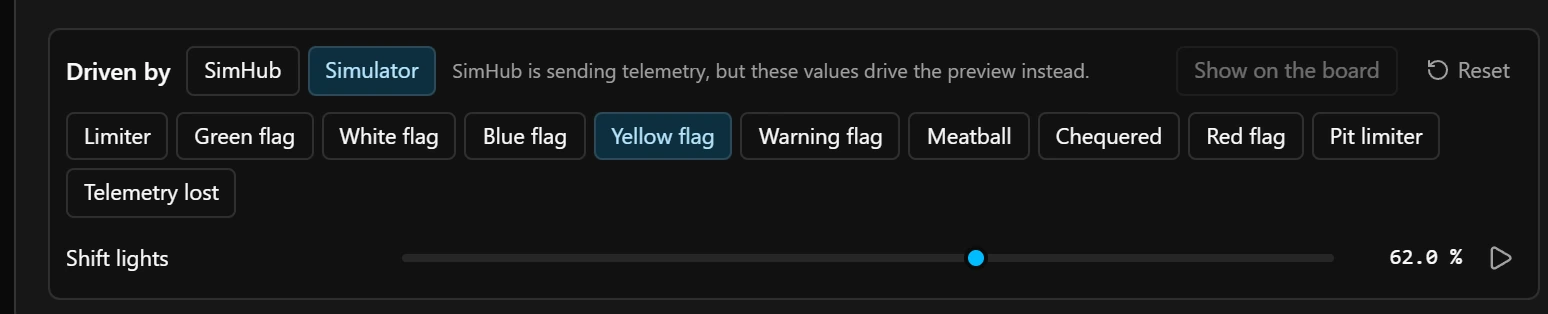
- 1Show on the board: see On the board.
- 2Telemetry lost: lights the layers that wait for the data to stop, such as Link lost.
- Sweep takes the slider from bottom to top and back every 4 seconds. One slider sweeps at a time, and moving it by hand stops the sweep.
- In the preview, Telemetry lost lights the
telemetry_idlelayers at once; on the board they wait for 2 seconds of silence. - Values that are text, apart from the gear, get no control.
Play one layer
- 1On the Layers tab, press the play button on a layer’s row.
- 2While it plays, the layer ignores its gate and Hold, so it is on all the time; Blink still works. A layer that reads a value runs it from the bottom of its Range to the top every 4 seconds, a gear steps from
Rup to9, and the colour rules take turns, 1.5 seconds each, followed by none. While SimHub sends values, the layer uses them instead. - 3Press play on more layers to play them together. Where they share a lamp, the one you pressed last wins, as on the board.
- 4Moving, duplicating or removing a layer, choosing another device or leaving the Modules page stops it.
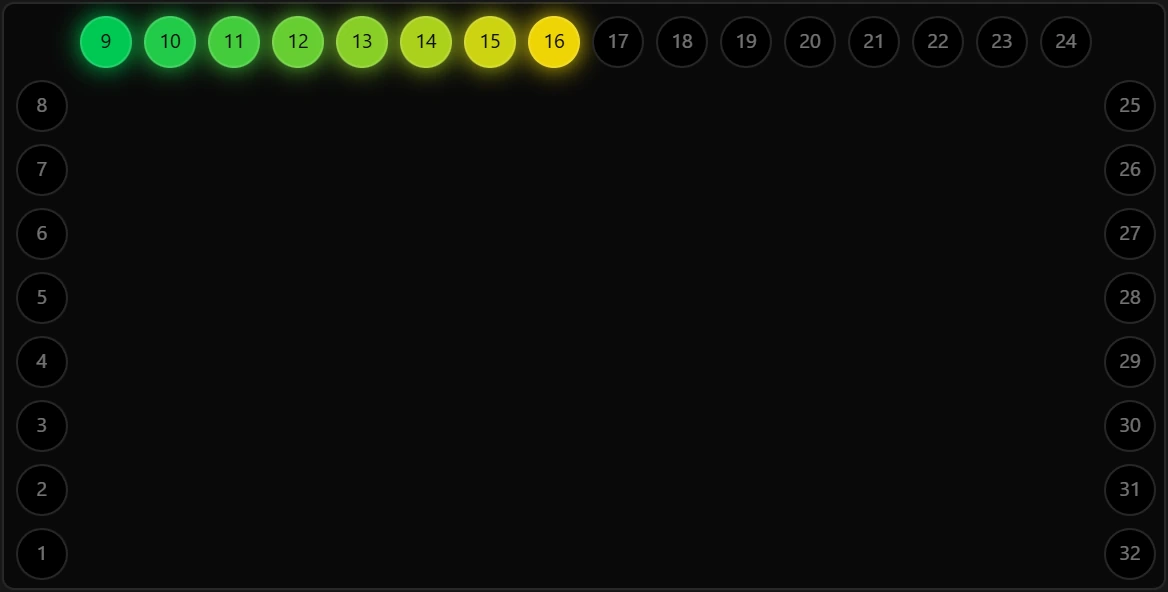
While a layer plays, clicks on the map do not change lamps. Pictures play the same way from the Pictures tab, see Pictures and animations.
On the board
Show on the board
Show on the board sends the simulator’s values to the connected board in place of SimHub’s. The board’s lamps follow them, and so does its screen wherever it shows the same values. The board lights the layers it is running, which are the ones you see here while it follows the draft.
- It pauses while a layer or a picture plays.
- It stops when you press it again, choose SimHub or leave the Modules page. The configurator then clears the simulated values and lets SimHub’s through again.
- With Telemetry lost on it sends nothing, so the board’s
telemetry_idlelayers come on after their usual wait.
Playing on the board
A layer or a picture you play also plays on the board, when the board follows the draft. The device then shows only what is playing; other strips and matrices carry on as before. On the board a layer that reads a value follows the game rather than the sweep in the preview. When you stop playing, the device shows its whole configuration again.

Previewing here only means no board is connected, or it does not follow the draft. Board refused the preview: hover the chip for the reason. The board follows the draft while it is connected and nothing listed under Live preview stops it.
Good to know
- The preview tells a running game from the values the device’s layers read. When the layers read only on/off values, such as flags or ABS, all of them are off between events, so the preview cannot tell a quiet stint from SimHub waiting and switches to the simulator. Press SimHub to follow the game anyway.
- Nothing in the simulator is saved: its values live in the configurator until you close it, and never change the configuration.
- To check that a matrix is described the way it is wired, see Check the wiring.