

Dashboards
Images
Put pictures of your own on a dashboard: add PNG, JPEG or BMP files, size them for the screen, make sprite sheets, install them on the board and show them with an Image widget.
The board cannot decode or resize a picture, so the configurator converts each one to the exact pixels the board will draw and installs them all on the board as one package. Icons that sit in text come from a font instead: see Fonts and icons.
The Images tab
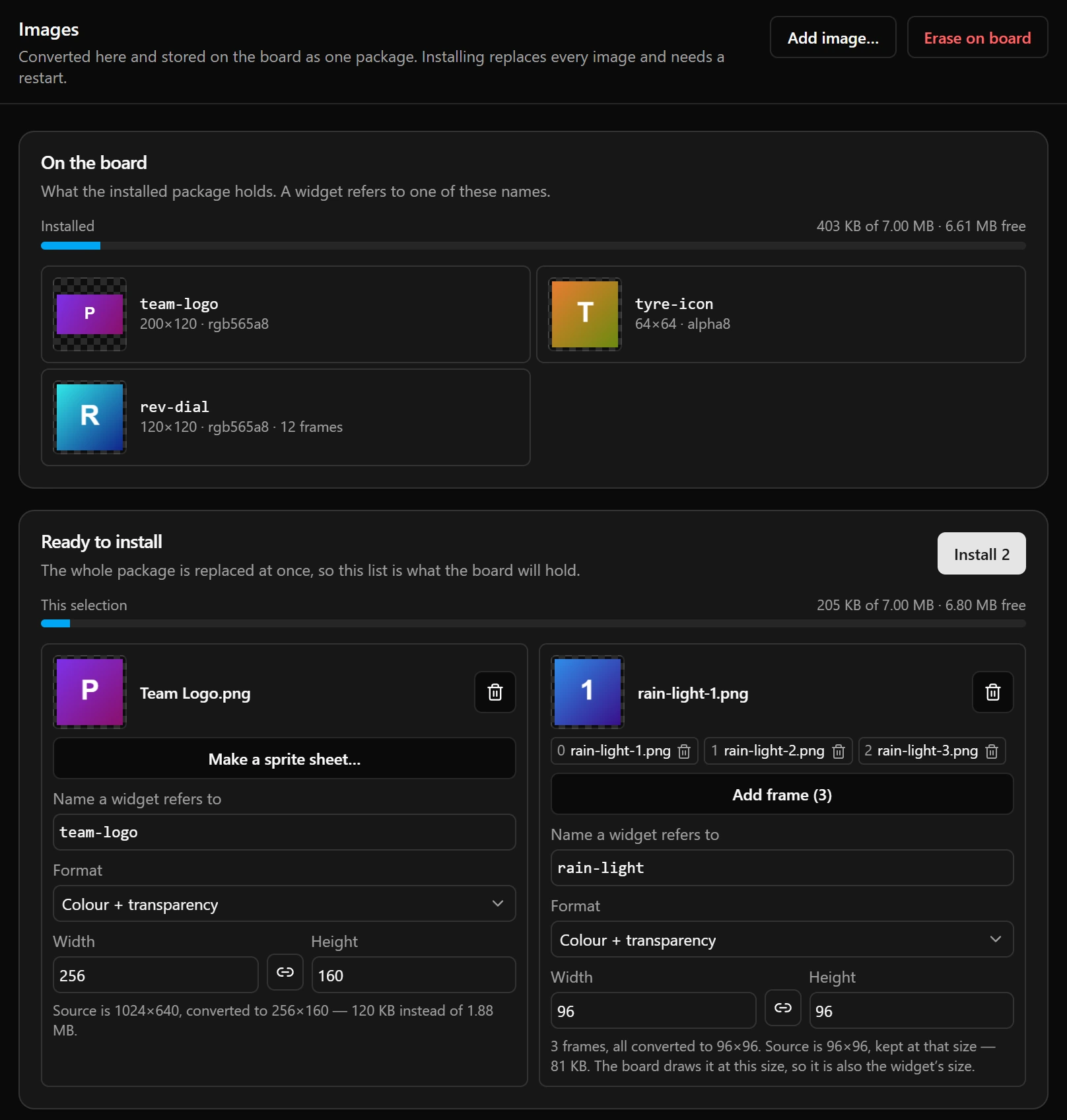
- 1Erase on board: see Remove images.
- 2The picture is the configurator’s own copy; an image installed from another computer shows No preview.
Add an image
Add every image the board should hold, including the ones it already has: an install replaces them all. A widget refers to an image by its name.
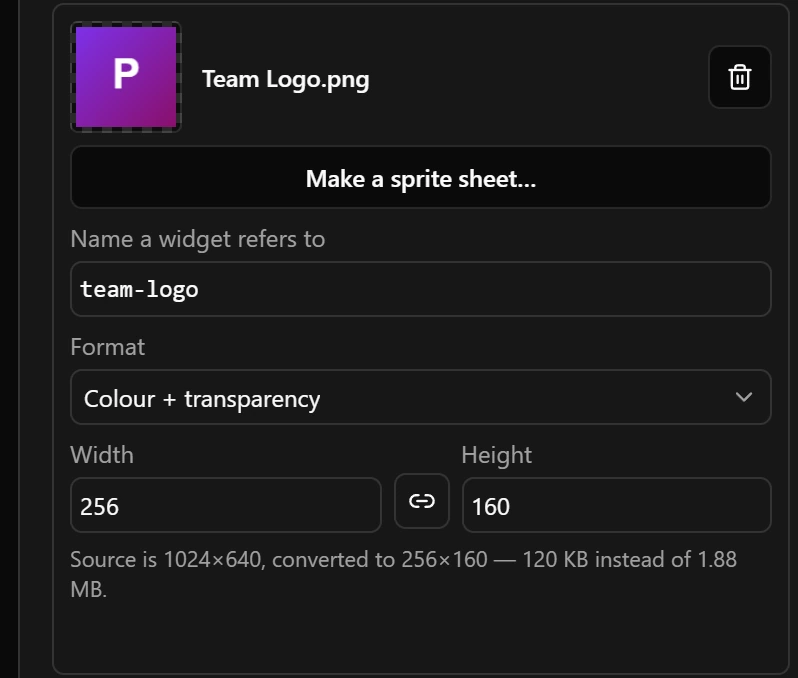
Format
| Format | What it stores | Room per pixel |
|---|---|---|
| Colour + transparency | Colour, with see-through parts. Chosen for a file that has any see-through pixel. | 3 bytes |
| Colour, no transparency | Colour only: the picture is a full rectangle. Chosen for a file without see-through pixels. | 2 bytes |
| Mask (alpha only) | Only the shape: how solid each pixel is. The board paints it white, or in the widget’s Recolour. | 1 byte |
Colours are stored with 16 bits per pixel, so a smooth gradient can show bands on the board.
Size
The board draws an image pixel for pixel: it never scales or rotates it, so set Width and Height to the size you want on the screen. A background for the 1024 × 600 screen of the JC1060P470C in Colour, no transparency takes 1.17 MB before compression.
Sprite sheets
A sprite sheet is several pictures stored as one image, each one a frame. An Image widget shows one frame at a time, chosen by a number or by a value from the game. The whole sheet counts as one of the 32 images a board holds. The frames are numbered from 0, in the order you added them.
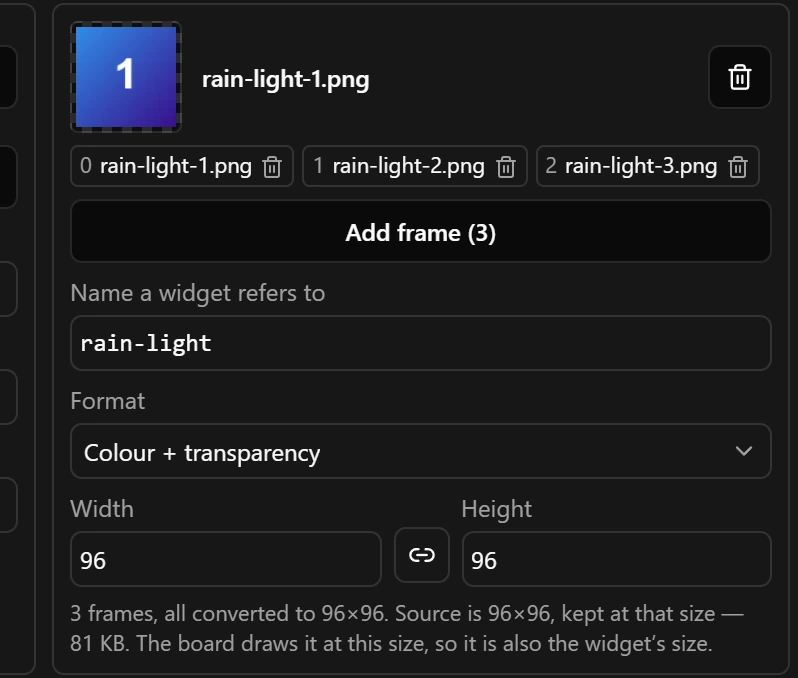
Every frame takes the size set on the card, and a picture of another size is stretched to it, so use pictures of one size.
Install the images
The game data pauses during an install. The board keeps drawing its old images until it restarts, and until then Install stays greyed out. A Save to board made in between restarts the board as well.
Show an image on the dashboard
The Bitmap list holds the images installed on the connected board, so it is empty with no board connected. Make the widget’s box the size of the picture: the board draws the picture at its own size, centred in the box.
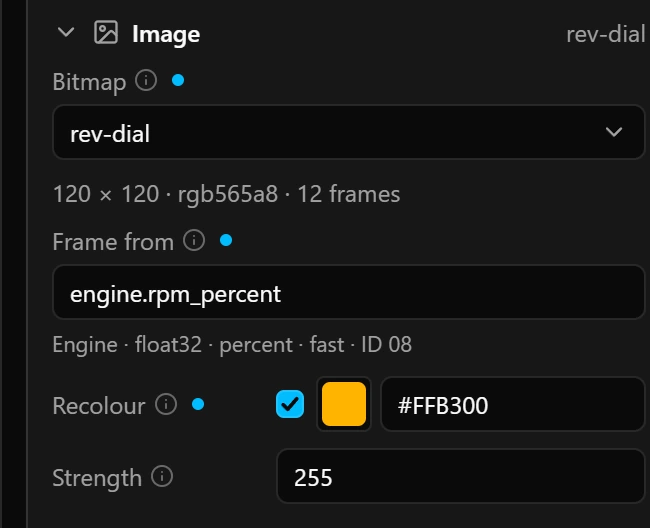
- 1Frame from: its value is rounded, and anything below 0 or past the last frame stays on the first or the last. While it is empty, a Frame row takes its place: a fixed frame, counted from 0.
- 2Recolour: one white icon can serve every state.
- 3Strength: a mask ignores it.
Frame from and Frame appear only for a sprite sheet. A yes/no field reads 0 or 1, so frame 0 shows for no and frame 1 for yes.
Remove images
- From the board: install again without them. First change the widgets that use them, because the board refuses a dashboard that names an image it does not hold.
- Erase on board erases every image on the board, after asking. Restart the board afterwards.
Good to know
- A new Image widget takes the first image installed on the connected board. With no board connected, or none installed, it starts with no picture, and the draft cannot be saved until you choose one.
- The canvas draws pictures from the configurator’s copy of the last install made on this computer. An image installed from another computer shows as a dashed box with its name.
- This selection counts the pictures before compression. The configurator compresses them when it packs them, so they usually take less room; after the install, On the board shows the real figure.
Limits
| What | Limit |
|---|---|
| Images on the board | 32, a sprite sheet counting as one |
| Room for all images together | 7 MiB, after compression |
| Width and height | 1 to 2048 pixels each |
| Frames in a sprite sheet | 64 |
| Name | Up to 31 characters: a–z, 0–9, - and _ |
| File types | PNG, JPEG, BMP |